

As a senior Android developer with over a decade of experience building apps for everything from fintech startups to enterprise-scale systems, I’ve seen my fair share of lifecycle-related bugs that could have been avoided with a deeper understanding. Today, I’m diving into the Android application lifecycle in a way that’s tailored for mid-level developers—folks who know the basics but want to level up. We’ll go beyond the surface-level diagrams and explore nuances, misconceptions, and real-world applications. Expect clear explanations, full code examples (in Kotlin, as it’s the modern standard), and insights from the trenches.
Why the Android Lifecycle Still Matters for Mid-Level Developers
If you’re a mid-level dev, you’ve probably memorized the Activity lifecycle diagram: onCreate(), onStart(), onResume(), onPause(), onStop(), onDestroy(). But why revisit it? In a world of Jetpack Compose, MVVM, and coroutines, isn’t this stuff outdated?
Not at all. The lifecycle is the heartbeat of your app. Misunderstanding it leads to memory leaks, UI glitches, battery drain, and crashes that only show up in production. For mid-level devs, mastering this means transitioning from “it works on my emulator” to “it’s reliable on a billion devices.”
Consider this: Android’s resource constraints force the system to kill processes aggressively. Your app must handle being paused, stopped, or destroyed gracefully. Plus, with modern features like multi-window mode, foldables, and background restrictions (post-Android 8), lifecycles are more dynamic than ever.
In this post, we’ll dissect these concepts with examples. You’ll learn not just “what” but “why” and “how to fix.” We’ll spend extra time on the Activity and Fragment lifecycles, detailing each callback’s purpose, best uses, and pitfalls. Let’s start by clarifying a fundamental distinction.
Process Lifecycle vs Activity Lifecycle
Mid-level devs often conflate the app process lifecycle with the Activity lifecycle. They’re related but distinct, and understanding the difference is crucial for handling state persistence and resource management.
The process lifecycle governs your entire app’s existence in memory. Android assigns processes priorities based on their state: foreground (when the app is visible and interactive), visible (partially obscured but still visible), service (running background services without a visible UI), background (not visible but cached for quick resumption), and empty (no components running, highly killable). When the system needs memory, it terminates lower-priority processes first. This can happen without warning, and your app might be restarted later by the system or user.
In contrast, the Activity lifecycle is specific to individual UI components like Activities. An Activity can go through its states—created, started, resumed, paused, stopped, or destroyed—without necessarily affecting the process. For instance, rotating the screen might destroy and recreate an Activity, but the process remains alive. However, if the process is killed (e.g., due to low memory), all Activities in it are gone, and the app restarts from a cold state.
A key takeaway for mid-level devs: Activities can be recreated within the same process (e.g., during configuration changes), preserving some in-memory state like ViewModels. But process death wipes everything non-persistent, including static variables, singletons, and in-memory caches. This is why you should never rely on statics for critical data.
To illustrate this distinction, let’s look at a practical example. We’ll create a basic app with an Activity and a static variable in the Application class to track a counter. This will show how configuration changes affect the Activity but not the process, versus a full process kill.
Kotlin
// MyApplication.kt
class MyApplication : Application() {
    companion object {
        var globalCounter: Int = 0  // Static-like variable; survives Activity recreation but not process death
    }

    override fun onCreate() {
        super.onCreate()
        Log.d("Lifecycle", "Application onCreate called")
    }
}

// MainActivity.kt
class MainActivity : AppCompatActivity() {
    private var localCounter: Int = 0  // Instance variable; reset on Activity recreation

    override fun onCreate(savedInstanceState: Bundle?) {
        super.onCreate(savedInstanceState)
        setContentView(R.layout.activity_main)

        MyApplication.globalCounter++
        localCounter++

        Log.d("Lifecycle", "Global counter: ${MyApplication.globalCounter}, Local counter: $localCounter")

        // Add a button to increment for testing
        findViewById<Button>(R.id.increment_button).setOnClickListener {
            MyApplication.globalCounter++
            localCounter++
            Log.d("Lifecycle", "After increment - Global: ${MyApplication.globalCounter}, Local: $localCounter")
        }

        // Simulate scenarios: Rotate screen for Activity recreation, or use adb to kill process
    }
}
Run the app and increment the counters. Rotate the screen (a configuration change): The Activity is destroyed and recreated, so localCounter resets to 1, but globalCounter continues incrementing because the process is still alive. Now, force-kill the process using ADB (adb shell am kill com.example.myapp) and relaunch the app: Both counters reset because the process was terminated.
For mid-level devs: Always use onSaveInstanceState() to bundle UI state for Activity recreation (e.g., saving localCounter). For process death recovery, persist data using SharedPreferences, Room database, or files. Avoid over-relying on the process lifecycle—assume it can die anytime after your app goes to the background.
This distinction also impacts services and broadcast receivers, but we’ll focus on UI components here. Understanding it prevents bugs like lost user input during rotations or unexpected state resets after multitasking.
Cold Start, Warm Start, and Hot Start Explained
App launches aren’t monolithic; they vary based on the app’s prior state, and optimizing for each type is a mid-level skill that improves user experience. Let’s break down cold, warm, and hot starts, why they matter, and how to measure/optimize them.
- Cold Start: This occurs when your app’s process doesn’t exist in memory—either because it’s the first launch after installation/boot, or the system killed the process earlier (e.g., low memory). Android creates a new process, initializes the Application class (calling its onCreate()), loads resources, and then starts your launch Activity. This is the slowest start, often taking 5-10 seconds on low-end devices, and it’s prone to ANRs (Application Not Responding) if you do heavy work in onCreate().
- Warm Start: The process exists, but the Activity has been destroyed (e.g., after onStop() due to the user navigating away or a configuration change). Android recreates the Activity, passing any saved state from onSaveInstanceState(). Faster than cold starts since the process and Application are already initialized, but still involves inflating layouts and restoring state.
- Hot Start: The app is in the background (after onStop(), but process alive and Activity instance intact). Bringing it to the foreground simply calls onRestart(), onStart(), and onResume(). This is the fastest, often under 1 second, as everything is cached in memory.
Why should mid-level devs care? Poor cold start performance leads to high abandonment rates—users expect apps to load quickly. Use Android Profiler or Firebase Performance Monitoring to measure these. Aim for <5 seconds on cold starts by deferring non-essential init (e.g., analytics setup) to later lifecycles or using lazy loading.
Here’s an example to log and differentiate start types with timestamps. Add this to your Activity:
Kotlin
class MainActivity : AppCompatActivity() {
    private val appStartTime = System.currentTimeMillis()  // Timestamp at class init (before onCreate)

    override fun onCreate(savedInstanceState: Bundle?) {
        super.onCreate(savedInstanceState)
        setContentView(R.layout.activity_main)
        Log.d("StartType", "onCreate elapsed: ${System.currentTimeMillis() - appStartTime}ms")

        // If savedInstanceState != null, it's likely a warm start (recreation)
        if (savedInstanceState != null) {
            Log.d("StartType", "Warm start detected via saved state")
        }
    }

    override fun onStart() {
        super.onStart()
        Log.d("StartType", "onStart elapsed: ${System.currentTimeMillis() - appStartTime}ms")
    }

    override fun onResume() {
        super.onResume()
        Log.d("StartType", "onResume elapsed: ${System.currentTimeMillis() - appStartTime}ms")
        // Hot start if elapsed time is very low and no saved state
    }

    override fun onRestart() {
        super.onRestart()
        Log.d("StartType", "onRestart called - Likely hot start")
    }
}
Test scenarios: For cold start, kill the process and launch. Expect longer times in onCreate(). For warm, rotate or use “Don’t keep activities” in developer options. For hot, minimize and reopen. Optimization tips: Use SplashScreen API for cold starts, preload data in ViewModels, and avoid blocking UI thread.
Activity Lifecycle: Common Misconceptions
Mid-level developers often know the Activity lifecycle callbacks but harbor misconceptions that lead to subtle bugs. Let’s dispel them and dive deep into each callback: what it does, what you should use it for, and key caveats. Remember, the lifecycle is: onCreate() → onStart() → onResume() → (user interaction) → onPause() → onStop() → onDestroy(), with onRestart() for resuming from stopped state.
Misconception 1: onDestroy() is always called for cleanup. False—the system can kill the process without invoking it, especially in low-memory scenarios. Don’t rely on it for critical releases; use onStop() instead.
Misconception 2: onPause() means the app is fully backgrounded. No—it’s called when the Activity loses focus but might still be partially visible (e.g., dialog overlay or multi-window). Full invisibility is onStop().
Misconception 3: savedInstanceState is only for configuration changes. It’s also used when the system recreates Activities after process death (if the app was in recent tasks).
Now, let’s detail each callback.
| Callback | When Called | What to Do | Key Caveats |
|---|---|---|---|
onCreate(Bundle? savedInstanceState) | Called when the Activity is first created or recreated (e.g., after configuration change or process death). | Set up the UI (setContentView()), initialize ViewModels, restore state from savedInstanceState (if not null), perform one-time setups like dependency injection, inflate layouts, and bind views. | Avoid heavy operations (e.g., network calls) to prevent slow starts—defer to onStart() or use coroutines. If savedInstanceState is null: fresh creation; otherwise, restore UI state. Never assume it’s called only once per process. |
onStart() | Called when the Activity becomes visible to the user (after onCreate() or onRestart()). | Start operations that require visibility: animations, sensor listening, data refreshes that don’t need full interaction, or bind to services. | UI is visible but not yet interactive (onResume() handles interactivity). Avoid CPU-intensive tasks that block the UI. Paired with onStop()—balance start/stop to prevent leaks. |
onResume() | Called when the Activity gains focus and becomes interactive. | Resume paused operations: start camera previews, play media, fetch real-time data, perform UI updates, or start UI-tied coroutines. | Paired with onPause()—must execute quickly to avoid jank. Users expect instant responsiveness after backgrounding. May be called multiple times on foldables/multi-window without full stops. |
onPause() | Called when the Activity loses focus (e.g., another Activity starts or a dialog appears). | Pause UI updates, release exclusive resources (e.g., camera), stop animations, and save transient state (e.g., draft text). Ideal for quick saves. | Activity may still be partially visible—don’t assume it’s gone. Must be fast (<5ms ideally) as it blocks the next Activity. Don’t cancel long-running tasks (let ViewModels handle them). Paired with onResume(). |
onStop() | Called when the Activity is no longer visible (fully backgrounded). | Release heavy resources (e.g., unregister receivers, stop services), save persistent data, and prepare for possible process death (commit unsaved changes). | Not guaranteed if process is killed. Paired with onStart(). App may be killed soon—don’t start new tasks. Good for cleanup that survives recreations. |
onDestroy() | Called just before the Activity is destroyed. | Perform final cleanup: remove observers, release references, or clear caches. Rarely used for critical operations. | Not always called (skipped on process kill). Check isFinishing() to distinguish user-initiated vs. recreation. Avoid heavy work. Paired with onCreate(). |
onRestart() | Called when a stopped Activity is about to restart. | Refresh state if needed before onStart(). | Only called after onStop() (not after recreations). Rarely overridden—use sparingly. |
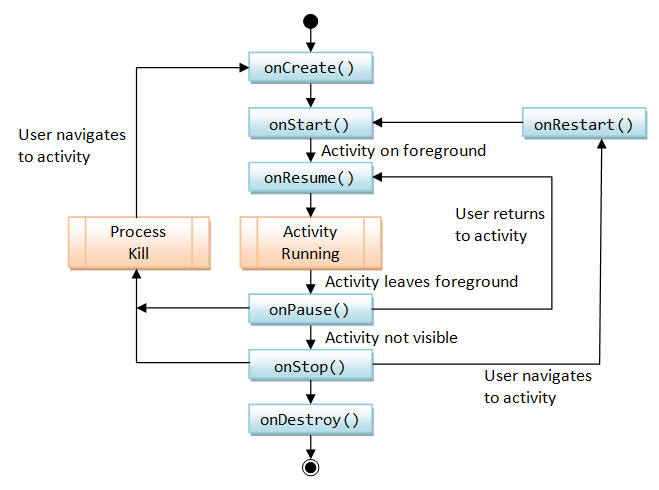
Full example integrating a network call:
Kotlin
class MainActivity : AppCompatActivity() {
    private var viewModel: MyViewModel? = null
    private val handler = Handler(Looper.getMainLooper())
    private var counter = 0

    override fun onCreate(savedInstanceState: Bundle?) {
        super.onCreate(savedInstanceState)
        setContentView(R.layout.activity_main)
        viewModel = ViewModelProvider(this)[MyViewModel::class.java]
        if (savedInstanceState != null) {
            counter = savedInstanceState.getInt("counter")
        }
    }

    override fun onStart() {
        super.onStart()
        // Start visibility-dependent tasks
    }

    override fun onResume() {
        super.onResume()
        viewModel?.fetchData { result ->
            handler.post { updateUI(result) }
        }
    }

    override fun onPause() {
        super.onPause()
        // Pause interactive tasks
    }

    override fun onStop() {
        super.onStop()
        // Save and release
    }

    override fun onDestroy() {
        super.onDestroy()
        // Final cleanup
    }

    override fun onSaveInstanceState(outState: Bundle) {
        super.onSaveInstanceState(outState)
        outState.putInt("counter", counter)
    }

    private fun updateUI(result: String) { /* UI code */ }
}

class MyViewModel : ViewModel() {
    fun fetchData(callback: (String) -> Unit) {
        viewModelScope.launch {
            delay(2000)
            callback("Data")
        }
    }
}
This setup uses ViewModel for survival and handlers for safe UI updates.
Fragment Lifecycle: Hidden Pitfalls
Fragments complicate things because their lifecycle syncs with the host Activity’s but has additional callbacks. Pitfalls include mismatched states, leaks from retained Fragments (deprecated), and unexpected orders with child Fragments. Let’s detail each callback, what to use it for, and caveats.
The Fragment lifecycle: onAttach() → onCreate() → onCreateView() → onViewCreated() → onStart() → onResume() → onPause() → onStop() → onDestroyView() → onDestroy() → onDetach().
| Callback | When Called | What to Do | Key Caveats |
|---|---|---|---|
onAttach(Context context) | Called when the Fragment is attached to its host Activity. | Get references to the Activity (e.g., cast to an interface for communication), initialize context-dependent variables. | Activity may not be fully created yet—avoid UI operations. Can be called multiple times if reattached. Avoid storing strong references to the Activity to prevent memory leaks. |
onCreate(Bundle? savedInstanceState) | Called when the Fragment is first created (similar to Activity’s onCreate). | Perform non-UI initialization: restore state from savedInstanceState, initialize ViewModels. | No view exists yet—do not touch UI elements. Survives configuration changes if setRetainInstance(true) was used (but this is deprecated; prefer ViewModels). |
onCreateView(LayoutInflater, ViewGroup?, Bundle?) | Called to inflate the Fragment’s view hierarchy. | Inflate and return the root view using the LayoutInflater. | Can be called multiple times (e.g., during recreations)—keep it lightweight. Return null for headless Fragments (no UI). |
onViewCreated(View, Bundle?) | Called immediately after the view is created (after onCreateView). | Bind views (e.g., findViewById), set up click listeners, initialize UI logic. | View exists but is not yet visible on screen. Preferred over onCreateView for complex view setup to avoid cluttering inflation. |
onStart() | Called when the Fragment becomes visible (syncs with Activity’s onStart). | Start operations like animations or sensor listening. | Synchronized with the host Activity’s onStart(). Balance with onStop() to manage resources properly. |
onResume() | Called when the Fragment becomes interactive (syncs with Activity’s onResume). | Start real-time operations (e.g., camera, location updates). | Synchronized with the host Activity’s onResume(). Must execute quickly to avoid jank. |
onPause() | Called when the Fragment loses focus (syncs with Activity’s onPause). | Pause UI-related operations, save transient drafts. | Must be fast; the Fragment might still be partially visible. |
onStop() | Called when the Fragment is no longer visible (syncs with Activity’s onStop). | Release heavy resources, save persistent data. | Prepare for possible destruction; synchronized with Activity’s onStop(). |
onDestroyView() | Called when the Fragment’s view is being destroyed. | Clean up view-related references (e.g., set views to null). | Fragment instance may still survive (e.g., during configuration changes if retained)—do not assume full destruction. Critical for preventing memory leaks. |
onDestroy() | Called when the Fragment instance is being fully destroyed. | Perform final cleanup of non-view resources. | Not guaranteed to be called (e.g., on process kill). |
onDetach() | Called when the Fragment is detached from its host Activity. | Null out any Activity references. | Can be called multiple times; ensures no lingering strong references. |
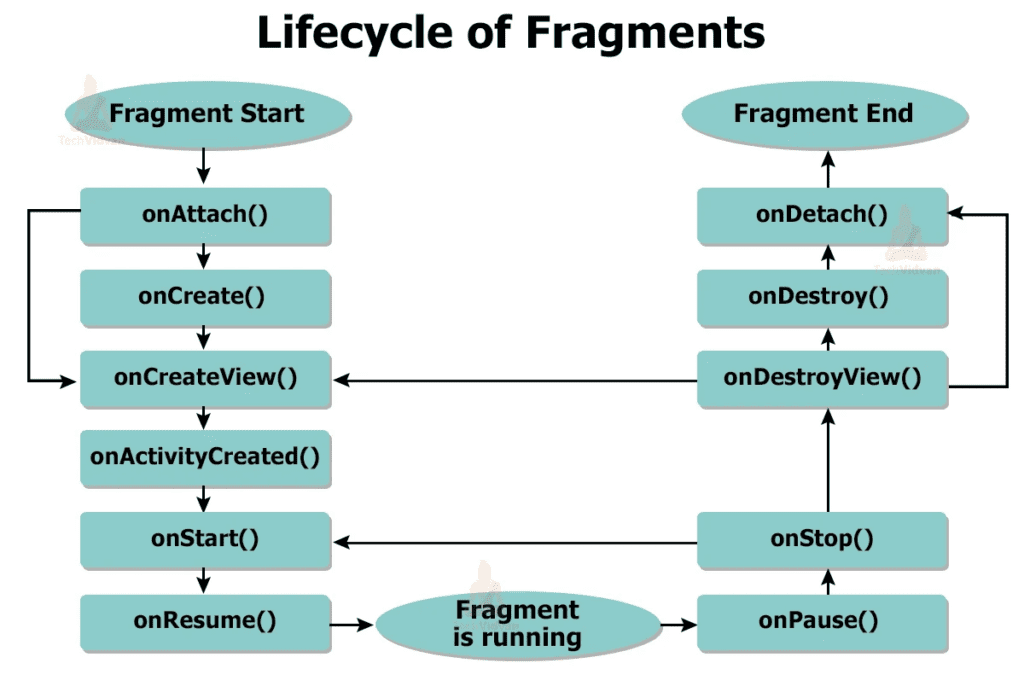
Pitfall: Child Fragments’ callbacks follow parent’s. Example with parent/child:
Kotlin
// HostActivity.kt
class HostActivity : AppCompatActivity() {
    override fun onCreate(savedInstanceState: Bundle?) {
        super.onCreate(savedInstanceState)
        setContentView(R.layout.activity_host)
        if (savedInstanceState == null) {
            supportFragmentManager.beginTransaction().add(R.id.container, ParentFragment()).commit()
        }
    }
}

// ParentFragment.kt
class ParentFragment : Fragment() {
    override fun onAttach(context: Context) {
        super.onAttach(context)
        Log.d("Fragment", "Parent onAttach")
    }

    override fun onCreateView(inflater: LayoutInflater, container: ViewGroup?, savedInstanceState: Bundle?): View? {
        val view = inflater.inflate(R.layout.fragment_parent, container, false)
        Log.d("Fragment", "Parent onCreateView")
        return view
    }

    override fun onViewCreated(view: View, savedInstanceState: Bundle?) {
        super.onViewCreated(view, savedInstanceState)
        childFragmentManager.beginTransaction().add(R.id.child_container, ChildFragment()).commit()
        Log.d("Fragment", "Parent onViewCreated")
    }

    // ... other callbacks with logs

    override fun onDetach() {
        super.onDetach()
        Log.d("Fragment", "Parent onDetach")
    }
}

// ChildFragment.kt
class ChildFragment : Fragment() {
    override fun onAttach(context: Context) {
        super.onAttach(context)
        Log.d("Fragment", "Child onAttach")
    }

    override fun onCreateView(inflater: LayoutInflater, container: ViewGroup?, savedInstanceState: Bundle?): View? {
        Log.d("Fragment", "Child onCreateView")
        return inflater.inflate(R.layout.fragment_child, container, false)
    }

    // ... other callbacks

    override fun onDetach() {
        super.onDetach()
        Log.d("Fragment", "Child onDetach")
    }
}
Rotate: Observe order—parent first, then child. Use onViewCreated for safe init.
Configuration Changes: What Really Happens
Configuration changes like screen rotation or keyboard availability trigger Activity/Fragment destruction and recreation to load appropriate resources (e.g., landscape layout).
Behind the scenes: The system calls onSaveInstanceState() to bundle state, destroys the old instance (onPause() → onStop() → onDestroy()), creates a new one with the bundle in onCreate(), and restores.
If you declare android:configChanges=”orientation|screenSize” in the manifest, the lifecycle skips destruction, but you must handle changes manually in onConfigurationChanged(). Caveat: This prevents automatic resource reloading, causing bugs on dynamic devices like foldables. Avoid unless necessary (e.g., games).
Example with state:
Kotlin
class ConfigActivity : AppCompatActivity() {
    private var counter = 0

    override fun onCreate(savedInstanceState: Bundle?) {
        super.onCreate(savedInstanceState)
        setContentView(R.layout.activity_config)
        if (savedInstanceState != null) {
            counter = savedInstanceState.getInt("counter")
        }
        updateCounterUI()
    }

    private fun updateCounterUI() {
        findViewById<TextView>(R.id.counter_text).text = counter.toString()
        findViewById<Button>(R.id.increment).setOnClickListener { counter++; updateCounterUI() }
    }

    override fun onSaveInstanceState(outState: Bundle) {
        super.onSaveInstanceState(outState)
        outState.putInt("counter", counter)
    }
}
For complex apps, combine with ViewModel and SavedStateHandle for robust state management.
Lifecycle-Aware Components (LifecycleOwner, LifecycleObserver)
Jetpack’s Lifecycle library decouples components from manual callbacks. LifecycleOwner (e.g., Activity/Fragment) exposes its lifecycle; observers react to events.
Example: Location observer.
Kotlin
class LocationObserver(private val context: Context) : DefaultLifecycleObserver {
    private var locationManager: LocationManager? = null

    override fun onCreate(owner: LifecycleOwner) {
        locationManager = context.getSystemService(Context.LOCATION_SERVICE) as LocationManager
    }

    override fun onResume(owner: LifecycleOwner) {  // Updated for interactivity
        if (ContextCompat.checkSelfPermission(context, Manifest.permission.ACCESS_FINE_LOCATION) == PackageManager.PERMISSION_GRANTED) {
            locationManager?.requestLocationUpdates(LocationManager.GPS_PROVIDER, 0L, 0f, locationListener)
        }
    }

    override fun onPause(owner: LifecycleOwner) {
        locationManager?.removeUpdates(locationListener)
    }

    private val locationListener = LocationListener { /* handle */ }
}

class LocationActivity : AppCompatActivity() {
    override fun onCreate(savedInstanceState: Bundle?) {
        super.onCreate(savedInstanceState)
        lifecycle.addObserver(LocationObserver(this))
    }
}
This auto-manages based on lifecycle, reducing boilerplate.
Handling Background & Foreground Transitions Safely
Foreground: onResume(). Background: onPause() then onStop().
Safe practices: Use coroutines with lifecycleScope, WorkManager for background work.
Example:
Kotlin
class TransitionActivity : AppCompatActivity() {
    override fun onResume() {
        super.onResume()
        lifecycleScope.launchWhenResumed { fetchData() }
    }

    override fun onPause() {
        super.onPause()
        saveQuickData()
    }

    override fun onStop() {
        super.onStop()
        WorkManager.getInstance(this).enqueue(OneTimeWorkRequestBuilder<SaveWorker>().build())
    }
}

class SaveWorker(context: Context, params: WorkerParameters) : Worker(context, params) {
    override fun doWork(): Result {
        // Heavy work
        return Result.success()
    }
}
Real-World Bugs Caused by Lifecycle Misunderstanding
Bug 1: Leaks from holding Activity refs in async tasks. Fix: WeakReference or lifecycle-aware.
Bad code:
Kotlin
class BuggyActivity : AppCompatActivity() {
    inner class LeakyTask : AsyncTask<Void, Void, Void>() {
        override fun doInBackground(vararg params: Void?): Void? { /* holds Activity */ return null }
    }

    override fun onCreate(savedInstanceState: Bundle?) {
        super.onCreate(savedInstanceState)
        LeakyTask().execute()
    }
}
Bug 2: UI updates post-onDestroy. Fix: Check lifecycle state.
Bug 3: State loss after kill. Fix: Persistence.
Best Practices & Mental Models Used by Senior Developers
Mental models: States as Created/Visible/Interactive. Assume death anytime.
Practices:
- ViewModels for data.
- lifecycleScope.launchWhenResumed {}.
- Test with dev options.
- Log lifecycles.
Example:
Kotlin
class BestPracticeActivity : AppCompatActivity() {
    override fun onCreate(savedInstanceState: Bundle?) {
        super.onCreate(savedInstanceState)
        lifecycleScope.launchWhenResumed {
            while (true) {
                delay(1000)
                Log.d("Tick", "Active")
            }
        }
    }
}